No products in the cart.

Sale




Description
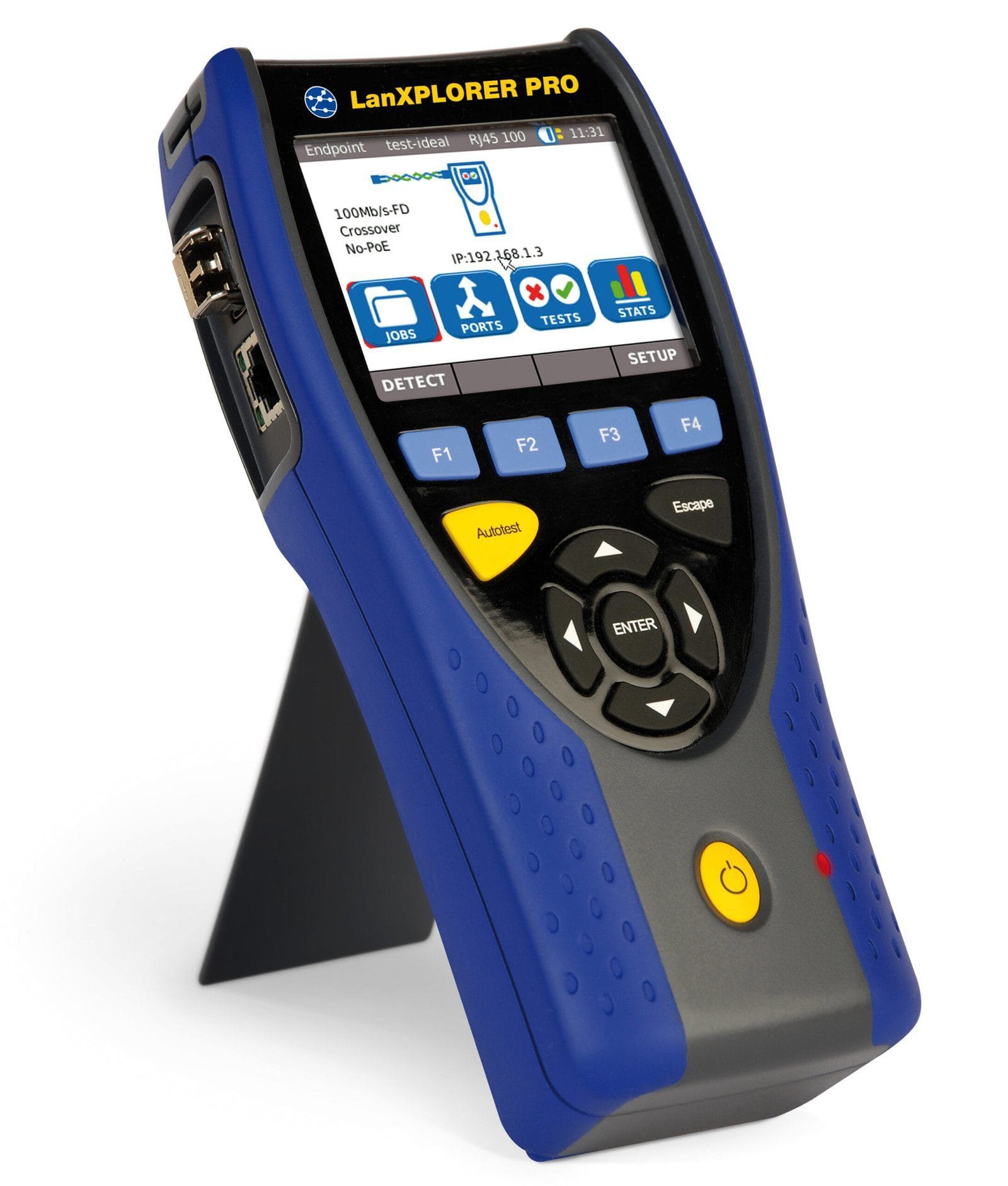
TREND Networks R150001 LanXPLORER PRO In-Line Network Troubleshooter

Network Troubleshooter with Bandwidth Monitoring and Performance Diagnostics
- Supports IDEAL AnyWARE App
- Voice over IP (VoIP) QoS testing
- Identifies source of network conflicts (copper)
- Identify MAC and IP address devices on network
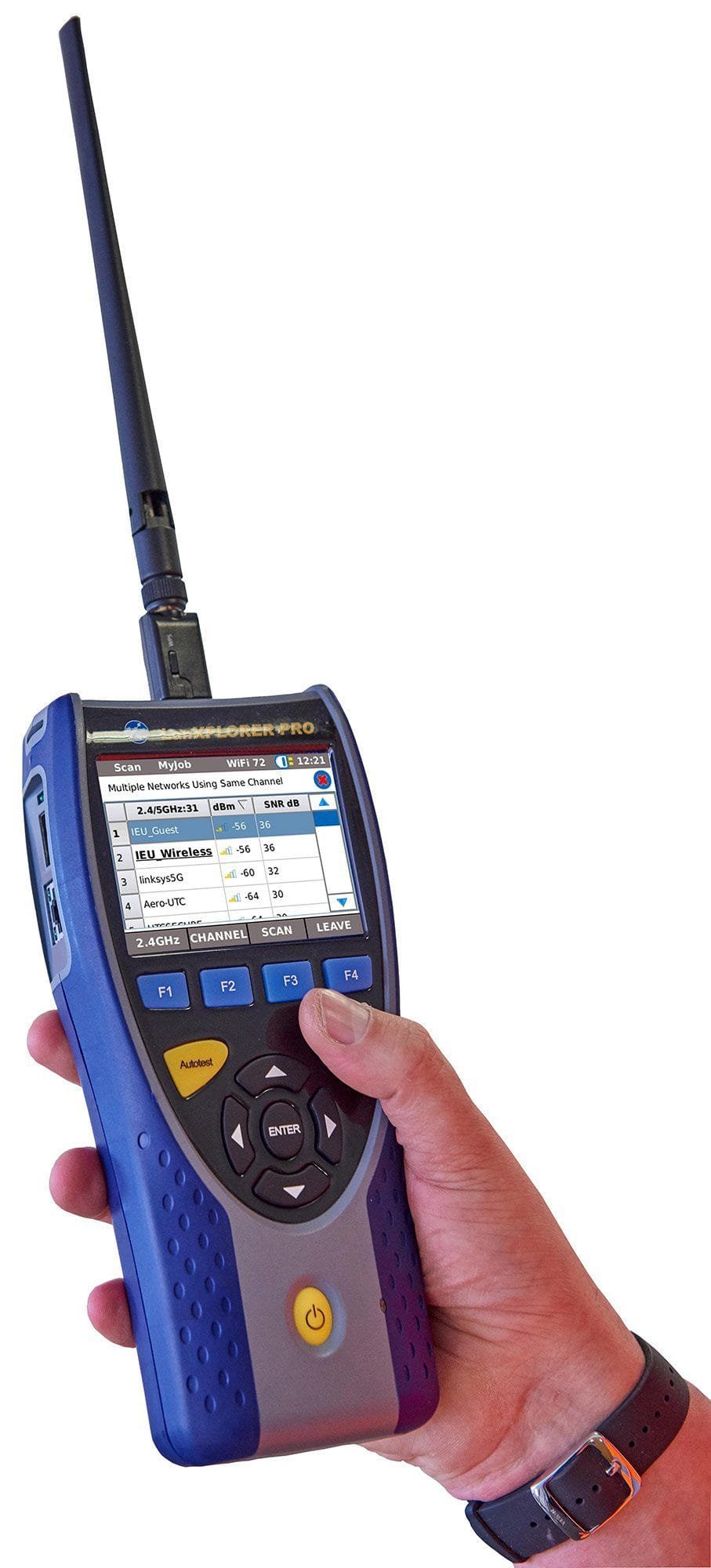
- Now includes a 2.4/5GHz band Wi-Fi antenna
LanXPLORER Pro is a hand held tester for analyzing and diagnosing problems in networks, cabling and Ethernet devices using copper, fiber and Wi-Fi interfaces. Using the LanXPLORER Pro in-line and end point modes, IT Technicians can pinpoint issues that are unable to be found with management software as it physically connects to the point of interest instead of scanning the entire network.
LanXPLORER Pro does not examine the contents of the data being analyzed therefore personal and confidential information will remain confidential. Diagnostic reports can be saved in PDF format and shared with colleagues and clients using the free IDEAL AnyWare app and a mobile device.

Voice over IP (VoIP) – Monitor Quality of Service (QoS) in real time using In-Line Mode
Quality of Service (QoS) is measured in real time when LanXPLORER Pro is connected in-line between a VoIP phone using SIP (Session Initiation Protocol) and the network. QoS metrics include jitter, delay, total packets, packet loss, source/destination IP addresses and port number. With standard SIP, signalling processes are shown including call pick up, phone number of both phones and duration.

Wi-Fi Testing – Resolve issues on your Wi-Fi network and reduce downtime
As well as using the Wi-Fi interface (2.4/5GHz 802.11a/b/g/n/ac) to connect and troubleshoot the network, the LanXPLORER Pro can perform a Wi-Fi site survey that displays the access point ID, signal strength (dBm), Signal to Noise Ratio (SNR), channel and encryption status. Quickly identify causes of slow Wi-Fi networks or connection issues, such as overlapping Wi-Fi channels or wrong SSID setup. Identify top wireless bandwidth consumers and total aggregate bandwidth consumption (overloaded access point) when connecting the LanXPLORER Pro between wireless access point and the network.

Ethernet Device Diagnostics and Troubleshooting using In-line Mode (Copper)
The in-line feature allows monitoring of network traffic between any two devices on the network to diagnose Ethernet issues that cannot be detected by software tools running on a PC or managed switch.

Top 10 Talkers and Listeners
Identifies top 10 bandwidth consuming devices (both transmitting and receiving) on the network to help troubleshooting, e.g. connect between core switch and the internet router to monitor total incoming and outgoing internet bandwidth consumption and identify top 10 bandwidth consuming devices.

Traffic Statistics
Monitor Min/Max/AVG throughput in Mb/s, packet count, frame size and Ethernet protocols.

VLAN Detection
Automatic detecti on of VLAN ID’s.

Network Diagnostic and Troubleshooting using End-Point Mode (Copper, Fiber and Wi-Fi)
The end-point feature is used to monitor and examine the LAN when connected directly to a network port or a mirrored port.
NETMAP/NETVERIFY
This function performs a scan of your entire network to identify all active devices by IP address, MAC address and host name which can be saved and compared to future NETMAPs to identify new or removed network devices, or changes in network configuration.

Network Conflicts
Identifies source of network conflicts such as unintentionally adding DHCP servers or devices using duplicate IP addresses.

Network Discovery
Connect to active network ports or Ethernet devices to verify network status and connectivity.
- Displays port ID of LLDP/CDP enabled switches to eliminate manual cable tracing
- Check Ethernet connectivity at device location to 10/100/1000 Mb/s
- Verify network configuration (device IP/gateway address/subnet mask)
- Identify IP address/name of router and number of hops between network points with traceroute test
- Troubleshoot devices by connecting directly to the Ethernet port to test operation, speed and duplex settings of the device
- Ping local network devices such as DNS, gateway/router, file servers, n-etwork printers, wireless access points, etc. Test internet connectivity by pinging website URL’s, e.g. www.google.com to verify min, max and average response time

Detection of potentially misconfigured devices
LanXPLORER Pro identifies devices that are generating network errors or degrading network performance, e.g. computers infected with malware creating broadcast storms that may disable or congest a network.
IEEE 802.1x
Use the 802.1X protocol to log onto networks secured by this standard, avoiding unnecessary security complications and lengthy project delays. (802.1X is a standard for port-based Network Access Control (PNAC)).
Power over Ethernet (PoE) Testing
PoE Monitoring
Using the in-line mode, LanXPLORER monitors the voltage and current used at the device.

PoE/PoE+ Load Test
Performs PoE/PoE+ load tests to determine the maximum power available to a PoE device at its installed location.

Connect between network and NVR (Network video recorder) to identify IP address, host name and bandwidth consumption of each camera. Connect between individual IP camera and the network to monitor bandwidth and power consumed using PoE.

Cable Testing (Copper and Fiber)
The LanXPLORER Pro offers a series of tests to aid troubleshooting
Copper Cabling Tests
- Wiremap test for open, shorts, miswires and split pairs to TIA-568 standard
- Distance to fault using TDR technology (copper only)
- Ability to identify and trace cables with a compatible amplifier probe (62-164)
- Port blink to visually trace cable from work area outlet to network switch

Fiber Cabling Tests
- Optical power indication (with compatible SFP modules)
- Port blink to visually trace cable from work area outlet to network switch
- Check the fiber SFP characteristics including the vendor name, model number and optical power level

Custom Wiremap
LanXPLORER Pro provides an extended list of wiremap templates for common Ethernet cable types including CAT 6A/7A/8, and non-Ethernet cable, such as Profinet, ISDN and Deutsche Bahn (German Rail system).
LanXPLORER>Pro

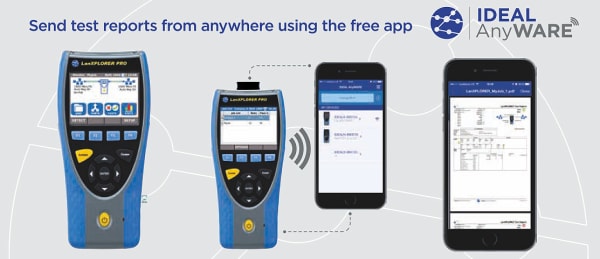
| Step 1 Test | Step 2 Connect | Step 3 Send |
|
|
|
| NaviTEK NT Pro | LanXplorer Pro | |
|
| All features of the NaviTEK NT Pro as well as the following:
|
Product General Attributes | |
|---|---|
| Unique Features | Network Tester Premium Kit |
| Battery Type | NimH |
| Power Supply Voltage | Battery Powered |
| Country of Origin | United Kingdom |
You must be logged in to post a review.
Manuals/Guides
BrochuresManualsSpec SheetsApplication Notes
Related products
Sale

Fluke Networks MT-8200-60-KIT IntelliTone Pro 200 LAN Kit
Original price was: $361.88.$330.55Current price is: $330.55. Add to cartSale

Fluke Networks DSX-CHA804S DSX-8000 Cat 8/Class Channel Adapter Set
Original price was: $901.98.$823.87Current price is: $823.87. Add to cartSale

Fluke Networks DSX-PLA804RKIT – CAT 8 PLA Adapter Plug Replacement Kit
Original price was: $282.68.$258.20Current price is: $258.20. Add to cartSale

Fluke Networks DSX-CHA004S DSX CAT 6A/CLASS EA CHA SET
Original price was: $689.68.$629.95Current price is: $629.95. Add to cartSale
Fluke Networks 26000900 PRO3000 Tone and Probe Kit
Original price was: $169.38.$143.25Current price is: $143.25. Add to cart TREND Networks R150001 –...
 Original price was: $4,911.50.$4,665.92Current price is: $4,665.92.
Our team of knowledgeable professionals is here to help you make informed decisions. Whether you need product recommendations, technical support, or guidance on your purchase, we're just a click away.
Contact Us Now:
📧 sales@nestesinstruments.com
📞 +1 (833) 763-7837
Let us assist you in finding the perfect solution!
Contact Us Now:
📧 sales@nestesinstruments.com
📞 +1 (833) 763-7837
Let us assist you in finding the perfect solution!
Reviews
There are no reviews yet.